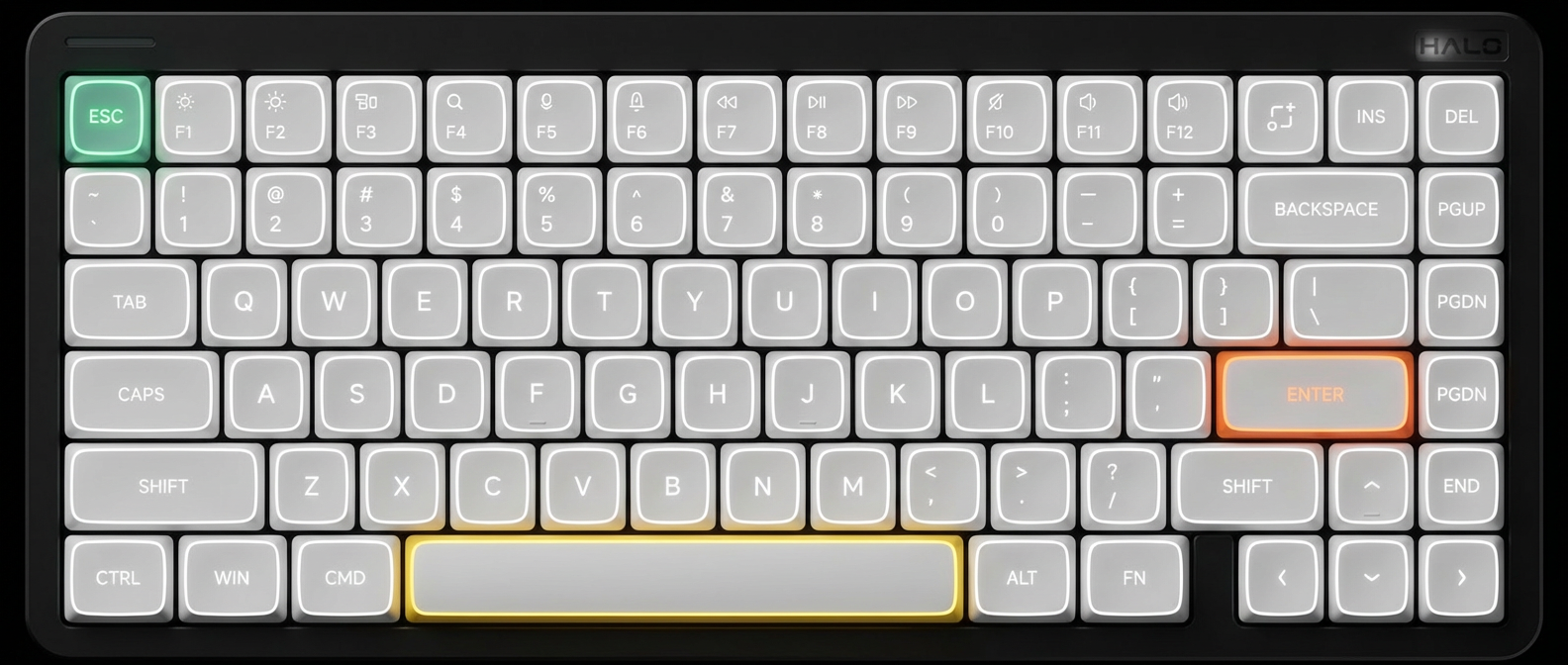
Use the physical OS switch on the left side of the keyboard to toggle between Windows/Android and macOS/iOS mode. Mac mode enables dedicated macOS F-row keys (Brightness, Mission Control, Spotlight, etc.).
$ Press ESC or click here to go back
NuPhy Halo75 V2 Keyboard Shortcuts
NuPhy Halo75 V2 OS Switch
Switch OS Mode: Side toggle switch — Use the physical OS switch on the left side of the keyboard to toggle between Windows/Android and macOS/iOS mode. Mac mode enables dedicated macOS F-row keys (Brightness, Mission Control, Spotlight, etc.).
NuPhy Halo75 V2 Bluetooth
Pair Bluetooth Device 1: Fn + 1 (hold 3s) — Long press Fn + 1 for 3 seconds to enter Bluetooth pairing mode for device slot 1. LED indicator flashes during pairing.
Pair Bluetooth Device 2: Fn + 2 (hold 3s) — Long press Fn + 2 for 3 seconds to enter Bluetooth pairing mode for device slot 2.
Pair Bluetooth Device 3: Fn + 3 (hold 3s) — Long press Fn + 3 for 3 seconds to enter Bluetooth pairing mode for device slot 3.
Switch to BT Device 1: Fn + 1 — Short press to switch to previously paired Bluetooth device 1.
Switch to BT Device 2: Fn + 2 — Short press to switch to previously paired Bluetooth device 2.
Switch to BT Device 3: Fn + 3 — Short press to switch to previously paired Bluetooth device 3.
Connect 2.4G Receiver: Fn + 4 — Switch to 2.4GHz wireless mode. Plug in the 2.4G receiver first.
NuPhy Halo75 V2 Lighting — Backlight
Toggle All Lights On/Off: Fn + Tab — Turn all keyboard lights (backlight, halo light, side light) on or off simultaneously.
Switch Backlight Effect: Fn + ← — Cycle through available backlight lighting effects.
Switch Backlight Color: Fn + → — Cycle through backlight color options.
Do Not Disturb: F6 (Mac mode) — Toggle Do Not Disturb / Focus mode.
Previous Track: F7 (Mac mode) — Skip to previous track in media playback.
Play / Pause: F8 (Mac mode) — Toggle play/pause in media playback.
Next Track: F9 (Mac mode) — Skip to next track in media playback.
Mute: F10 (Mac mode) — Mute/unmute audio output.
Volume Down: F11 (Mac mode) — Decrease system volume.
Volume Up: F12 (Mac mode) — Increase system volume.
NuPhy Halo75 V2 Fn Layer (Windows)
Browser: Fn + F1 — Open default web browser.
File Explorer: Fn + F2 — Open File Explorer.
Search: Fn + F3 — Open Windows Search.
Task View: Fn + F4 — Open Task View to see all open windows.
Screenshot (Snipping Tool): Fn + F5 — Open Snipping Tool for screenshot.
Cortana / Copilot: Fn + F6 — Open Cortana or Copilot assistant.
Previous Track: Fn + F7 — Skip to previous track in media player.
Play / Pause: Fn + F8 — Toggle play/pause in media player.
Next Track: Fn + F9 — Skip to next track in media player.
Mute: Fn + F10 — Mute/unmute system audio.
Volume Down: Fn + F11 — Decrease system volume.
Volume Up: Fn + F12 — Increase system volume.
NuPhy Halo75 V2 Special
Factory Reset: Fn + ] (hold 3s) — Hold Fn + ] for 3 seconds to restore factory defaults. Clears all Bluetooth pairings and custom settings.
Toggle Auto-Sleep: Fn + 0 — Toggle auto-sleep mode on/off. When enabled, keyboard enters sleep after 6 minutes of inactivity to save battery.
Show Battery Level: Fn + ; — Flash the current battery level via LED color indicator.
Toggle F-Key Mode: Fn + X + F — Toggle F-row behavior. In Win mode: switches between F1-F12 (default) and multimedia keys. In Mac mode: switches between multimedia keys (default) and F1-F12.
Force Wired Mode: Hold Esc → plug USB-C — Hold Esc key while plugging in USB-C cable to force wired connection mode.
NuPhy Console Software: Connect USB → open NuPhy Console — Use NuPhy Console software for key remapping, lighting customization, and macro recording. Available for Windows and macOS. VIA support also available via JSON sideload.