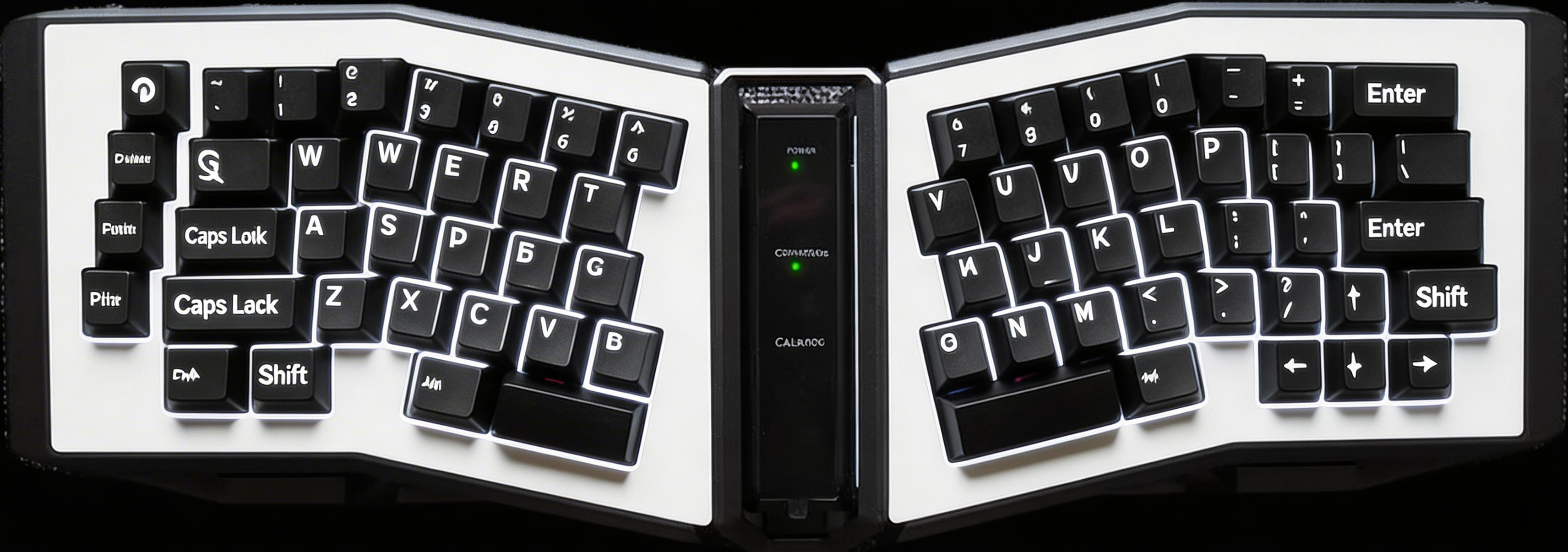
Enter Bluetooth pairing mode for device slot 1. The Q key lights up white continuously while pairing (other in-switch LEDs are disabled).
$ Press ESC or click here to go back
Angry Miao AFA Keyboard Shortcuts
Angry Miao AFA Bluetooth
Pair Device 1: Fn + Q (hold 3s) — Enter Bluetooth pairing mode for device slot 1. The Q key lights up white continuously while pairing (other in-switch LEDs are disabled).
Pair Device 2: Fn + W (hold 3s) — Enter Bluetooth pairing mode for device slot 2. The W key lights up white continuously while pairing.
Pair Device 3: Fn + E (hold 3s) — Enter Bluetooth pairing mode for device slot 3. The E key lights up white continuously while pairing.
Switch Bluetooth Device: Fn + Q/W/E — Short press to switch between previously paired Bluetooth devices 1/2/3.
Angry Miao AFA Lighting
Toggle In-Switch LEDs: Fn + ] — Enable or disable the in-switch RGB LED backlighting.
Cycle Lighting Effects: Fn + [ — Cycle through available in-switch RGB lighting effects.
Adjust LED Brightness: Fn + P — Adjust the in-switch LED brightness level.
Customize Lighting via DIY: diy.angrymiao.com — Configure advanced RGB lighting effects and custom animations through the web-based Angry Miao DIY configurator.
Angry Miao AFA Special
Power On/Off: Fn + Esc (long press) — Long press Fn+Esc to toggle the keyboard power on or off.
Factory Reset: Fn + R (hold 5s) — Restore keyboard to factory default settings. Hold for 5 seconds to confirm.
Check Battery Level: Fn + P — Display battery level via in-switch LEDs on the number row. Green (75-100%), yellow-green (50-75%), orange (25-50%), red (0-25%).
Auto Wired/Wireless Switch: Plug/unplug USB — The keyboard automatically switches between wired and Bluetooth modes when the USB cable is plugged in or removed. No manual toggle needed.
Key Remapping via DIY: diy.angrymiao.com — All keys support remapping and multimedia key assignment via the Angry Miao DIY web configurator, supporting up to 7 layers (Fn+Esc power combo excluded).