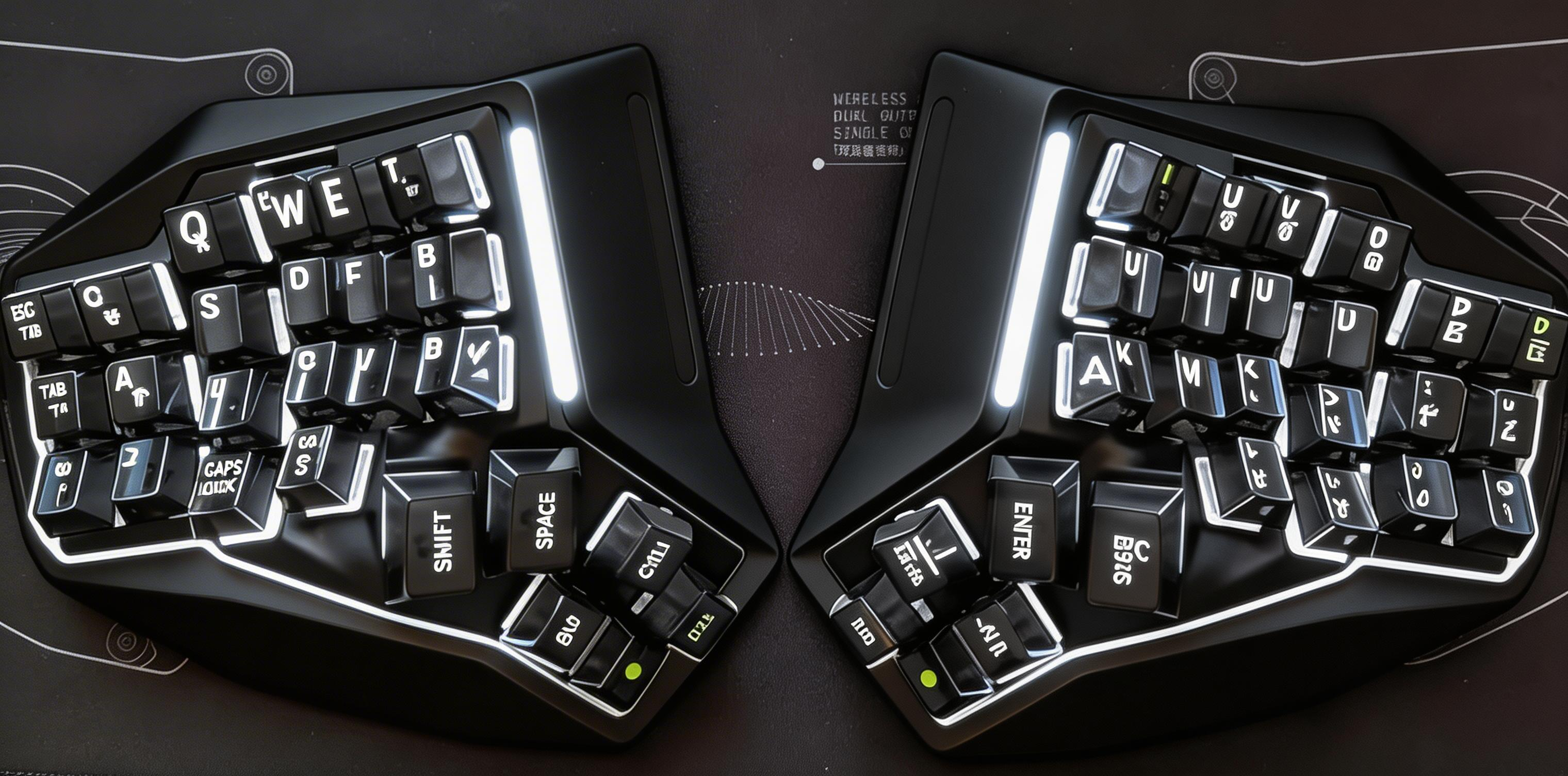
Enter Bluetooth pairing mode for device slot 1. The Tab key shows a breathing light effect while pairing.
$ Press ESC or click here to go back
Angry Miao AM Hatsu Keyboard Shortcuts
Angry Miao AM Hatsu Bluetooth
Pair Device 1: Button + Tab (hold 3s) — Enter Bluetooth pairing mode for device slot 1. The Tab key shows a breathing light effect while pairing.
Pair Device 2: Button + A (hold 3s) — Enter Bluetooth pairing mode for device slot 2. The A key shows a breathing light effect while pairing.
Pair Device 3: Button + S (hold 3s) — Enter Bluetooth pairing mode for device slot 3. The S key shows a breathing light effect while pairing.
Switch to Device 1: Button + Tab — Short press to switch Bluetooth connection to previously paired device 1. The Tab key flashes quickly for 3 seconds on successful switch.
Switch to Device 2: Button + A — Short press to switch Bluetooth connection to previously paired device 2.
Switch to Device 3: Button + S — Short press to switch Bluetooth connection to previously paired device 3.
Angry Miao AM Hatsu Fn Layer
Momentary Layer Switch: Hold Fn — Hold the Fn key to temporarily activate the alternate layer. When on Layer 0, outputs Layer 1 values; when on Layer 1, outputs Layer 0 values.
Toggle Layer: FnSW — Single click the FnSW key to permanently toggle the active layer between Layer 0 and Layer 1. Layer 0 has switch lights off; Layer 1 lights up the corresponding key backlights.
Angry Miao AM Hatsu Special
Check Battery Level: Button + P — View battery level via the side light bar. Green = 75-100%, light green = 50-75%, orange = 25-50%, red = 0-25%.
Factory Reset: Button + O (hold 3s) — Restore keyboard to factory default settings. All keys flash for 3 seconds to confirm reset.
Power Off Both Halves: Left Button + Esc (hold 5s) — Long press the left side's Button + Esc for 5 seconds to power off both the left and right keyboard halves simultaneously.